Install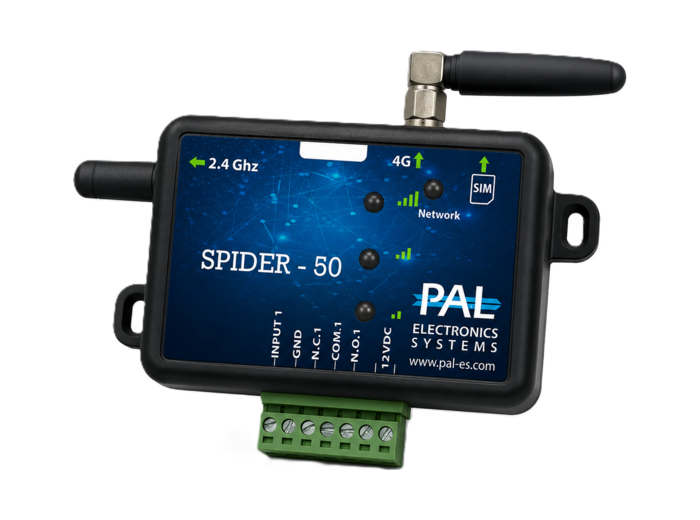
Installing Spider
Connect Spider to an existing gate, door or access system and configure connected access.

Installation and setup guides, answers to common questions, and direct support from the PAL team.
Step-by-step guides to help you install, configure and manage your PAL solutions.
Connect Spider to an existing gate, door or access system and configure connected access.
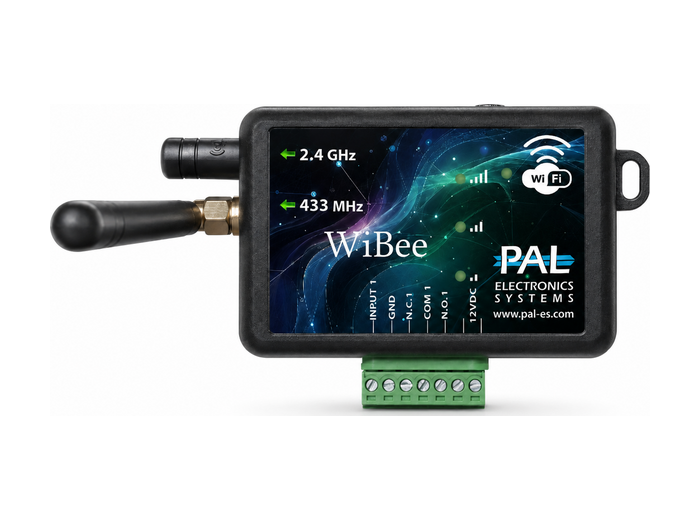
Connect WiBee to your existing gate or access system and get it up and running in minutes.
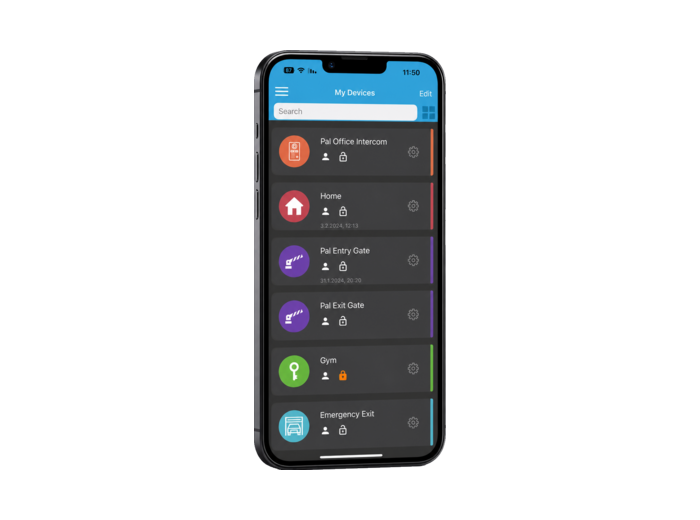
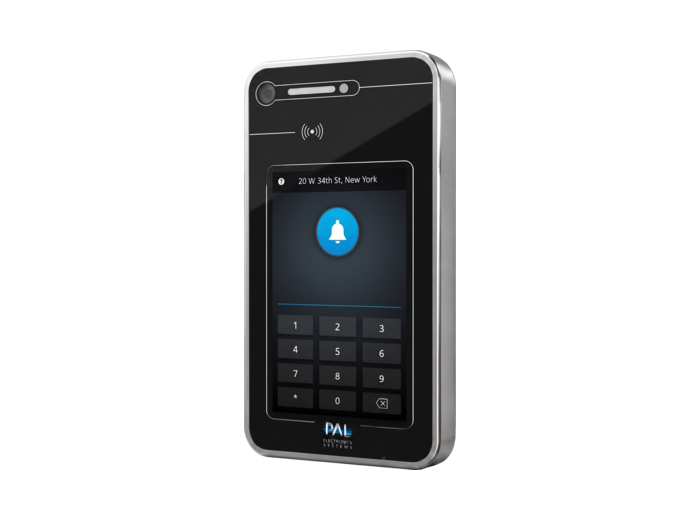
Download installation and user guides as PDF.
No dedicated wired internet connection is required. PAL devices connect via 4G or Wi-Fi, eliminating the need for network cabling or on-site servers.
The site owner or manager grants you access through the PalGate App. You can then open the gate from your phone. Access can be time-limited or revoked at any time.
Each PAL device variant has a distinct color coding, helping installers and support teams quickly identify the exact model.
Yes. PAL is designed to work with existing access and automation systems. Spider can add app, remote and cloud-based control without replacing your existing controller, while the Wiegand 26 model can integrate external devices such as keypads and card readers.
Visit our Become a Partner page and get in touch. We’ll help you get started with product training, technical support and partner pricing.
Download the PalGate App from the App Store (iPhone) or Google Play (Android), then:
If your number is already authorized for one or more gates, they appear right away. If you see "You are not authorized at this gate", contact the system administrator — your homeowners' association, management company or gate company — and ask them to check that your number is registered. PAL does not add or remove users on customers' systems.
A widget opens a gate with a single tap, without opening the app.
You can add as many widget buttons as you like. For widgets to work reliably, turn off battery optimization for the app (see the next question).
Android's battery optimization can stop the app working in the background. To turn it off for PalGate:
Menu names vary slightly between phone makers.
Tap the settings (gear) icon next to the gate, then tap the rotating arrow or + to choose a new color and image, or the pencil icon to rename it.
These changes affect only your own app, even if you're an administrator. To rename a gate for all users, change it in the Web Portal.
Any administrator of the gate can add users:
Permissions:
Go to the gate's settings (gear) → Admin Options → Users, tap the user, adjust the permission switches and tap Save. The permissions are the same as when adding a user.
Administrators can see the last 50 actions in the app: gate settings (gear) → Admin Options → History. Each entry shows the user (phone number, remote or name), the time, the method (dialing, app, remote, vehicle detector, Siri, Google Assistant or Google Home), whether it succeeded, and the exit used.
The Web Portal shows the full history since the controller was installed.
With the exit lock (latch relay) an authorized user can hold the gate in one state until it is released — unlike a timer, which follows a schedule.
The user needs the Exit lock permission (even administrators): gate settings → Admin Options → Users → the user → enable Exit lock → Save. To use it, open gate settings → Admin Options and choose N.O., N or N.C., or long-press the gate name and confirm. An orange icon shows next to the gate while a lock is active.
Yes. Device linking lets you use the PalGate App on a tablet or in-car system that has no SIM card or phone number, with the same account and the same gates as your phone. It's enabled for users by default; if it isn't, an administrator of the gate can turn it on.
Tap the three lines (side menu) on the app's main screen, tap Language and choose a language. The change applies right away and only to your own app.
A new controller is activated by the gate company or an authorized installer. Once activated, it can't be activated again by someone else — the installer adds you and makes you an administrator instead.
To activate a controller for the first time:
The controller appears under My Systems, and you can start adding users.
On Android you can open gates by voice. The gate name must be in English in the app.
Then say "Hey Google, open [gate name]". For each gate you can choose to open immediately, require a spoken code, or ask for confirmation first.
Yes — Auto Open opens the gate as you approach, on both iPhone and Android. It's supported on the current Spider devices. To work while the app is closed, Auto Open uses your phone's location in the background; see the Privacy Policy for details.
You can delete your account and its data from the app:
This can't be undone. Your name, email, profile picture, preferences, registered devices and linked services (such as Android Auto, Google Assistant and widgets) are permanently deleted. Logs of past gate openings may be kept for security and legal compliance.
The Web Portal comes with an annual subscription, purchased through your gate company or installer. Give them your email address and you'll receive a registration invitation (check your spam folder if it doesn't arrive). Tap REGISTER, fill in your details and tap CREATE AN ACCOUNT.
Then ask your installer to link your controllers to your account so you can manage them.
Click Web Login at the top of this website (or go to portal.pal-es.com), enter your email address and password, and click LOGIN.
For each controller the Web Portal shows:
Yes. Add a timer in the Web Portal for each time the gate should stay open. There's no limit to the number of timers.
Create a time group and assign users to it — for example employees, suppliers or evening staff. There's no limit to the number of groups.
To assign a user: open Users, choose the user, select the group in the Time Group row and tap Save.
The charts show technical history for a chosen period, from one hour to two weeks:
In the Web Portal, open Devices, choose the controller and click History. Unlike the app (last 50 actions), the Web Portal keeps the full history since the controller was set up.
Use Tools → Duplicate controller in the Web Portal and enter the details from the QR sticker on the new controller. Users and timers move to the new controller automatically; time groups don't, so recreate and reassign them.
Once the new controller works, delete the old one so users don't see two gates. From Tools an administrator or installer can also delete all users at once, or remove a controller entirely — this can't be undone, even if the controller is added again.
An external antenna improves reception in weak-signal areas or extends the range for remotes, vehicle detectors and Bluetooth:
If a controller is installed in a metal cabinet, an external antenna that reaches outside the cabinet is recommended.
Vehicles carry passive RFID tags (windshield stickers, no battery) or RFID cards, read from about 10 meters depending on the installation. The gate can also open from the PalGate App or by dialing.
There's no limit to the number of users; tags can be managed by time and imported or exported with Excel files; and the system is managed remotely through the Web Portal (subscription required). It works over 3G/4G cellular networks and has an optical relay with adjustable relay time.
Any external device that uses the Wiegand 26 protocol — keypads, tag readers, fingerprint readers and similar — becomes part of a smart, remotely managed system.
The Spider Wiegand 26 has no user limit, opens from anywhere with the PalGate App or by dialing, supports PAL remotes and vehicle detectors, sends real-time alerts by push notification or email, and supports timers and time groups.
Questions about our products, your installation, or becoming a PAL partner? We’re here to help.
General: info@pal-es.com
Sales: sales@pal-es.com
Manage your devices and access from the browser.